

How to hide the Altus Trip Assistant Chat on Specific Pages
Hide the Altus Trip Assistant chat from checkout, account, and other WordPress pages by adding page paths to the Visibility settings.
Hide the chat from specific pages
The Trip Assistant chat widget appears on every page of your site by default. You may want to hide it on pages where visitors are entering details or paying, such as your checkout page.
Add the page path to the block list in the Visibility settings. The chat then stays hidden on that page while remaining visible elsewhere.
To control where the chat appears across your whole site, see Set Visibility & Rate Limits.
If Where the widget appears is already set to Trip pages only, the chat stays off your checkout page. You do not need the steps on this page.
What you'll need before you start
- Altus AI installed and activated on your WordPress site.
- The Trip Assistant module turned on under
Altus AI > Settings > Modules.
Copy the page slug
A slug is the last part of a page's web address. In yoursite.com/checkout, the slug is checkout.
You need this path so Altus knows which page should hide the chat.
Open the page you want to update
Open the page where you want to hide the chat while you are logged in to WordPress. For example, open your checkout page.
Open the page editor
Click Edit Page in the black bar at the top of the screen.
Copy the slug
Look in the settings panel on the right. Find the page's slug in the URL section and copy it.
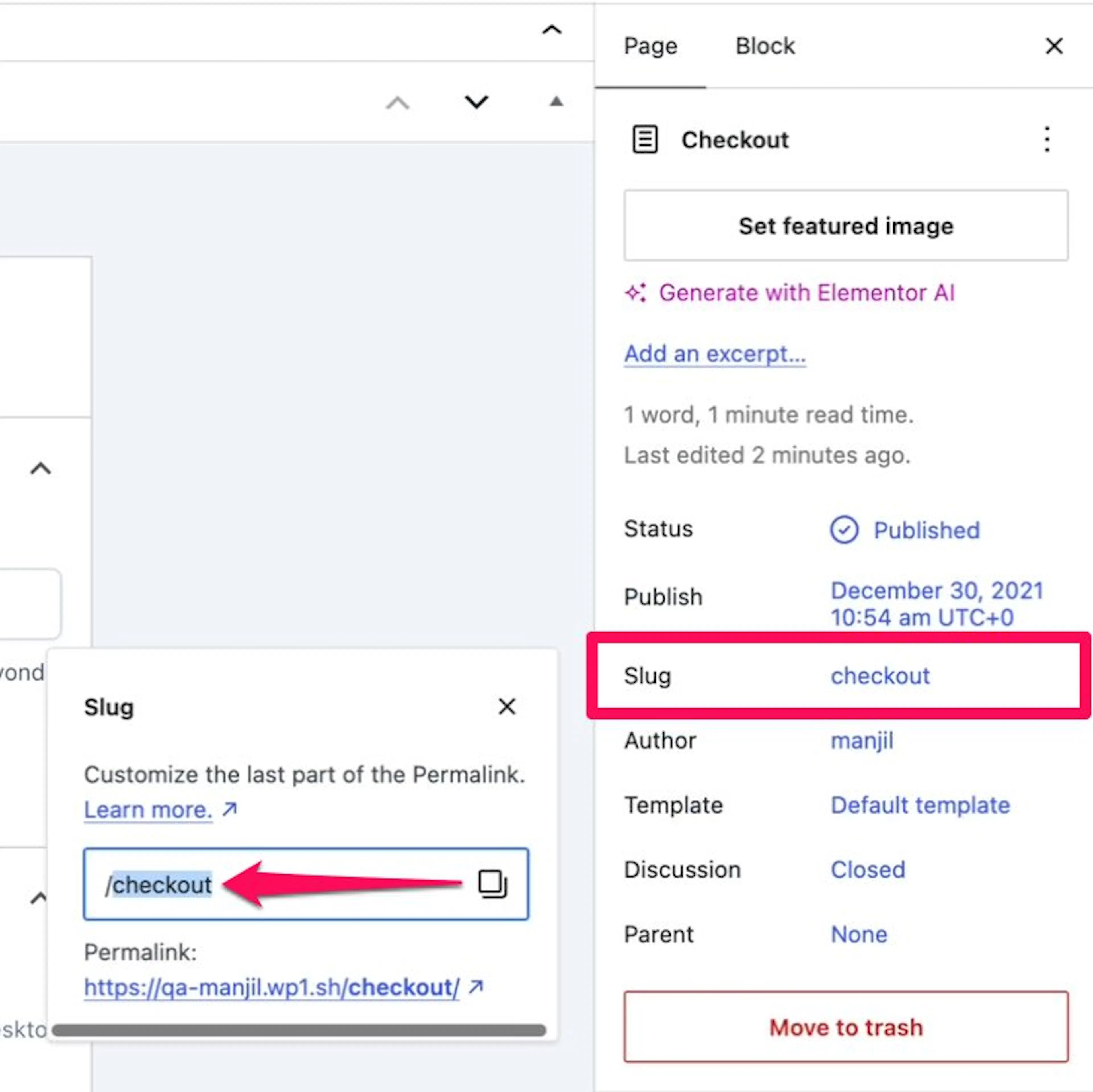
A slug alone works only for pages at the top level of your site. If the page sits under a parent page, copy the full path from your browser's address bar instead. The full path is everything after your domain name.
For example, a checkout page under a booking page uses /booking/checkout.
Hide the chat on one page
Now add the page path to the Visibility settings. This tells Altus to keep the chat off that page.
Open the Trip Assistant settings
Go to your WordPress Dashboard.
Open Visibility
From the left sidebar, go to Altus AI > Settings > Trip Assistant > Settings > Visibility.
Open the Visibility tab
Click Visibility.
Choose specific pages
Under Where the widget appears, select Specific pages. The Rule type and Pages options appear below it.
Choose the hide rule
For Rule type, select Hide on these.
Add the page path
Under Pages, click Add page. Paste the slug with a forward slash before it, such as /checkout.
Save the change
Click Save Settings at the bottom of the screen.
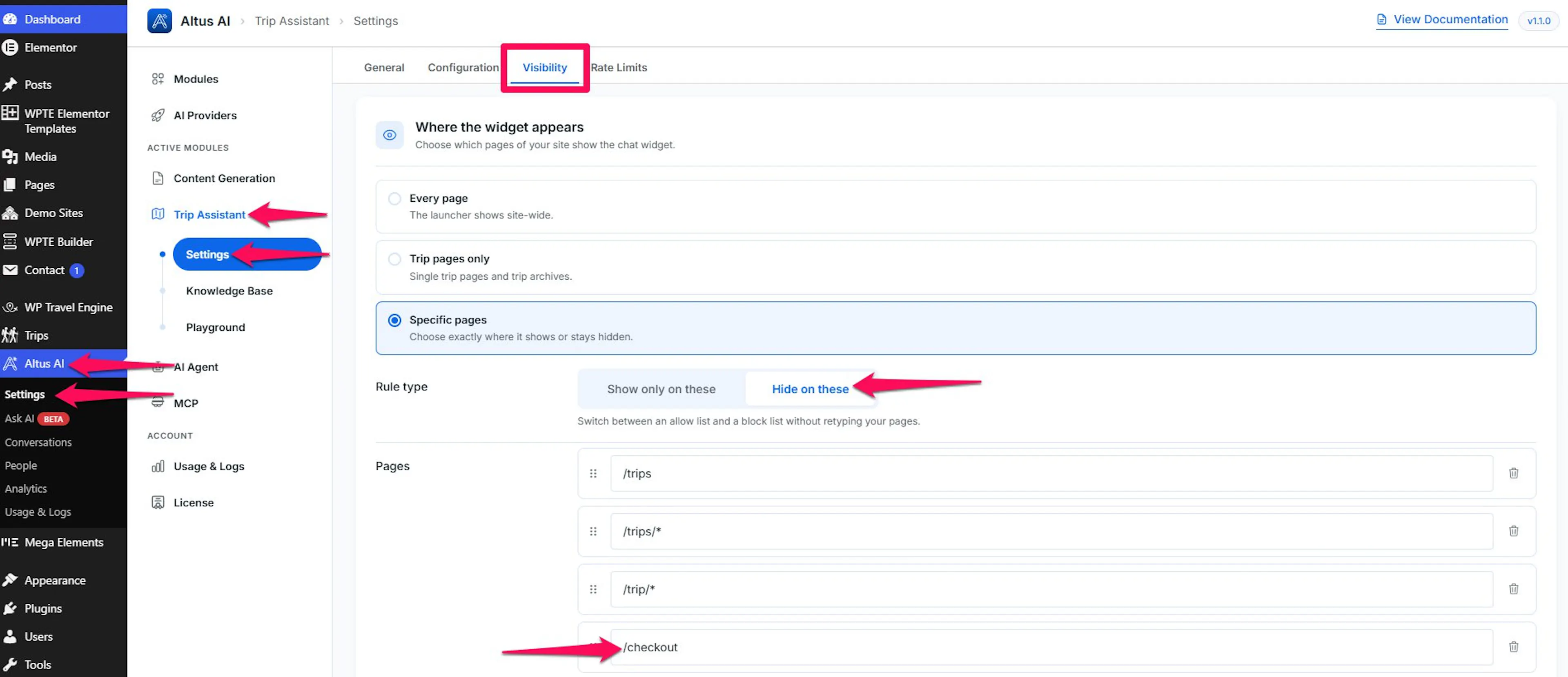
Make sure Rule type is set to Hide on these. If you choose Show only on these, the chat appears on the pages in your list and nowhere else. That is the opposite of what you want here.
Hide the chat on more pages
You can add more page paths to the same list. This helps when you want the chat hidden during several parts of the booking process.
Add another page
Click Add page again for each page where you want to hide the chat. Enter one path per row, such as /checkout and /my-account.
You can paste a full web address instead of a path. Altus reads only the path from that address.
Hide a page and its child pages
If you want to hide the chat on a page and every page below it, add a star to the end of the path. For example, /my-account/* hides the chat on /my-account and on every page below it.
Show the chat again
To show the chat on a page again, click the trash icon next to its row. Then click Save Settings.
If the chat still appears
Check these items before changing the rule again:
- The message at the bottom of the screen should read All changes saved. If it reads Unsaved changes, click Save Settings.
- The path must match the address in your browser. A typo prevents the rule from matching. The same applies if you use
/checkoutwhen the actual page path is/booking/checkout. - If you use a caching plugin, clear its cache. You can also open the page in a private browser window. A stored copy of the page can still include the chat.
- If WordPress is installed in a subfolder, include that folder in the path. For example, a site at
yoursite.com/travel/uses/travel/checkoutfor its checkout page.
If you're still stuck or have a question we didn't cover, our support team is happy to help. Reach out at our support page and we'll get you sorted.