

How do I roll back a plugin or add-on to a previous version?
Use the free WP Rollback plugin to switch any plugin or add-on back to an earlier version from your WordPress dashboard.
Introduction
If an update causes a problem on your site, you can switch the plugin or add-on back to an earlier version from your WordPress dashboard. You'll need the free WP Rollback plugin to do this.
The steps below work for any plugin or add-on. We use WP Travel Engine - Travel and Tour Booking Plugin as the example. To roll back something else, search for that plugin's name instead in Step 2.
Back up your site before you roll back. An older version may not work with data or settings added in a newer one, and a backup lets you restore everything if something goes wrong.
Step 1: Install and activate WP Rollback
- From your WordPress dashboard, go to Plugins > Add Plugin.
- Search for WP Rollback.
- Find WP Rollback – Rollback Plugins and Themes by Devin Walker and click Install Now.
- Click Activate once the installation finishes.
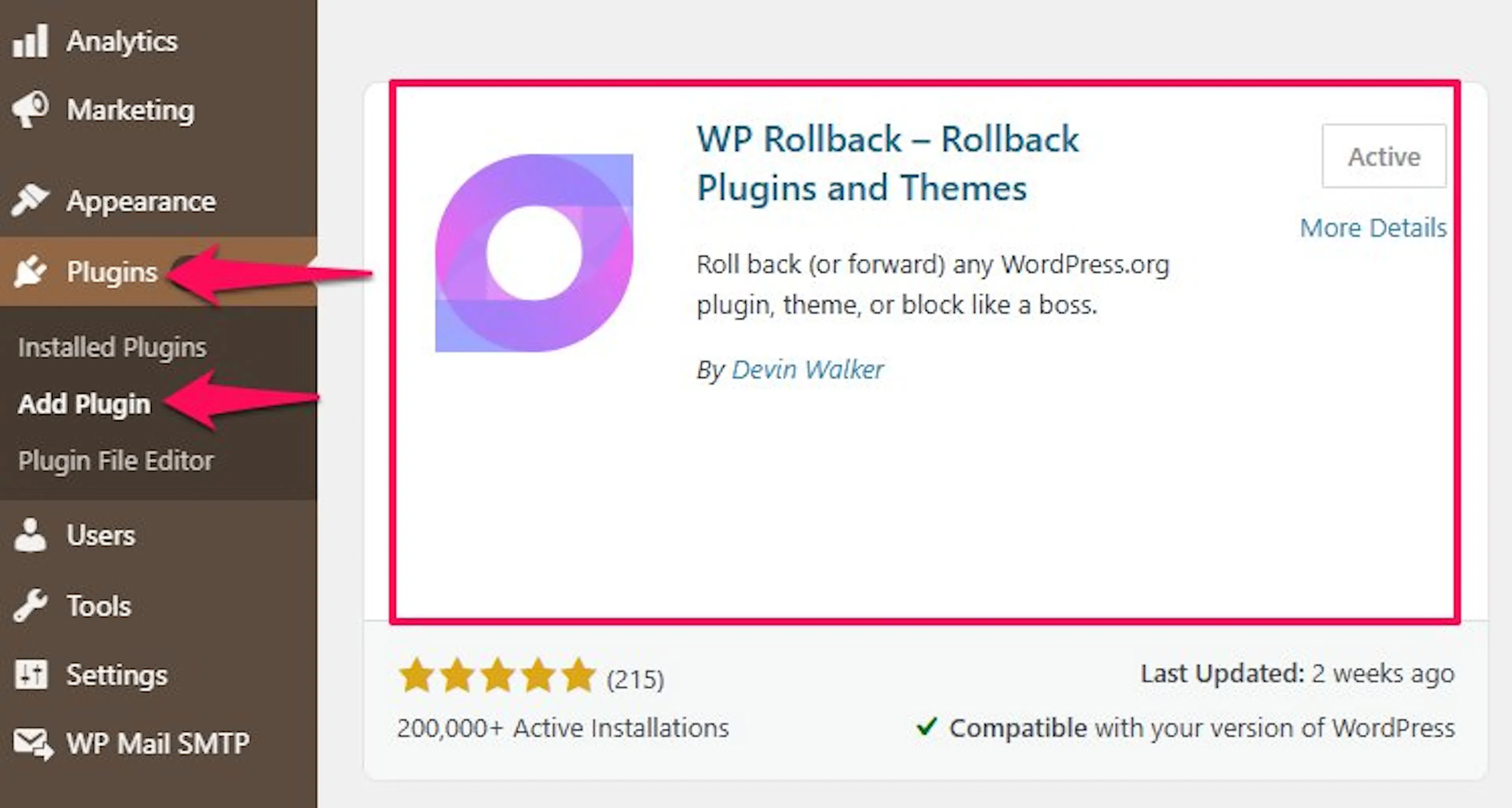
You only need to do this once. After that, WP Rollback works for every plugin on your site.
Step 2: Find the plugin you want to roll back
- Go to Plugins > Installed Plugins.
- Type the plugin's name in the search box at the top right of the list. In our example, that's WP Travel Engine.
- Under the plugin's name, you'll see a new Rollback link next to Deactivate.

If the Rollback link is missing, check that WP Rollback is active. The link only shows up while WP Rollback is activated.
Step 3: Choose the version you want to go back to
- Click Rollback.
- WP Rollback opens a page listing the released versions of that plugin. Your current version is marked.
- Select the version you want to install.
- Click Rollback at the bottom of the list.
- Confirm the rollback in the pop-up window.
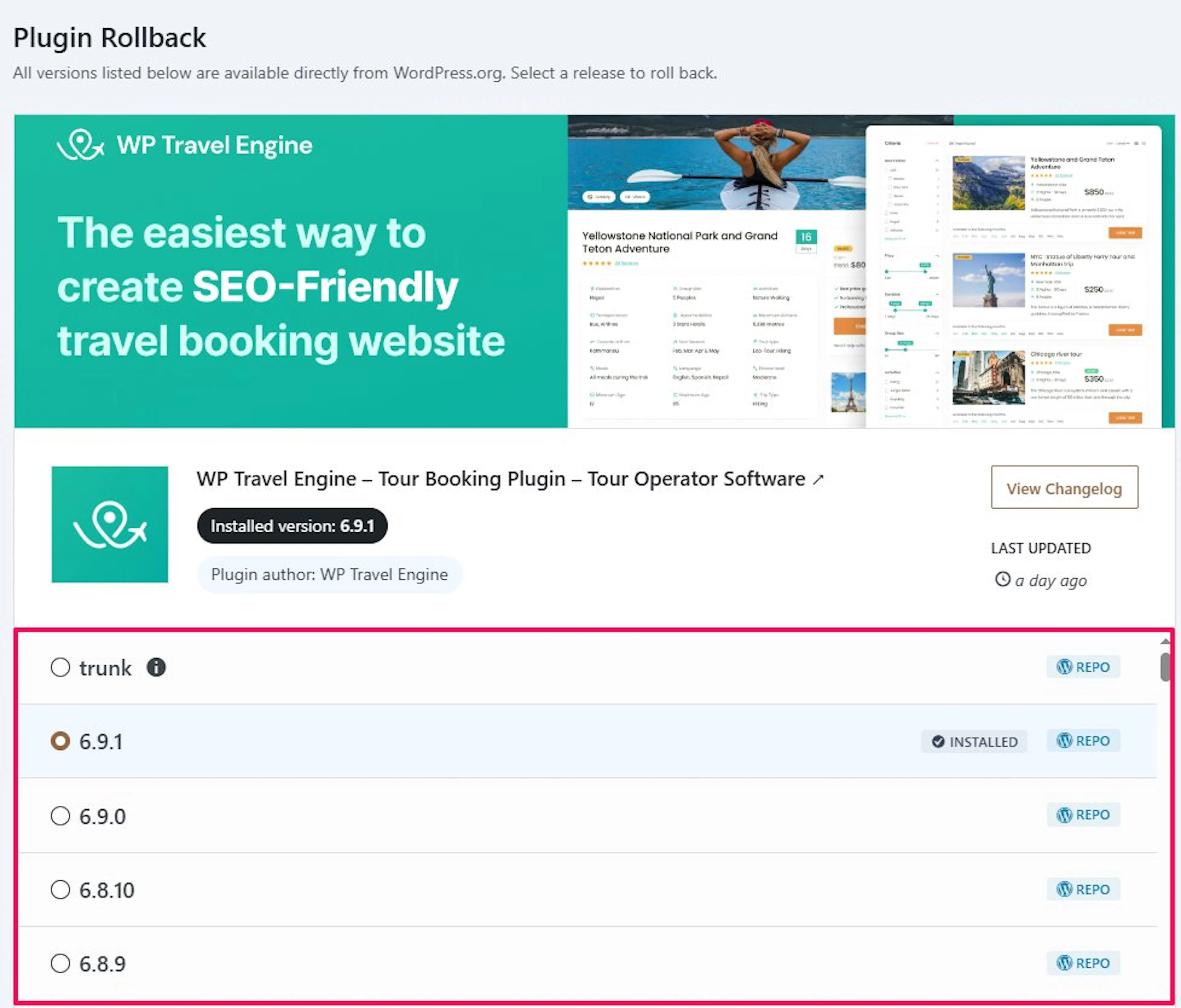
WordPress replaces your current version with the one you picked. When it finishes, go to Plugins > Installed Plugins and check the version number under the plugin's name to confirm the change.
WordPress will keep offering the newer version as an update. Hold off on updating until a new release fixes the issue that made you roll back.
Why don't I see the Rollback link for an add-on?
WP Rollback can only roll back plugins hosted on WordPress.org. Free plugins listed there will show the Rollback link. Paid add-ons are sold outside WordPress.org, so the link may not appear for them.
What if something breaks after rolling back?
Restore the backup you took before starting or update the plugin to the latest version again from Plugins > Installed Plugins. If the problem continues, contact our support team and tell them which plugin you rolled back, which version you went back to, and why.
If you're still stuck or have a question we didn't cover, our support team is happy to help. Reach out at our support page and we'll get you sorted.